No products in the cart.



10 min read
Short answer: Excel is more suitable when you need to perform heavy calculations, handle large datasets over 10,000 rows, or work offline with sensitive data. Google Sheets is more suitable when you need multiple people to update in real-time, collect data from forms, or quickly share dashboards. Most small businesses in Vietnam should use both — Excel as the primary calculation system, Google Sheets as the sharing and collaboration layer.
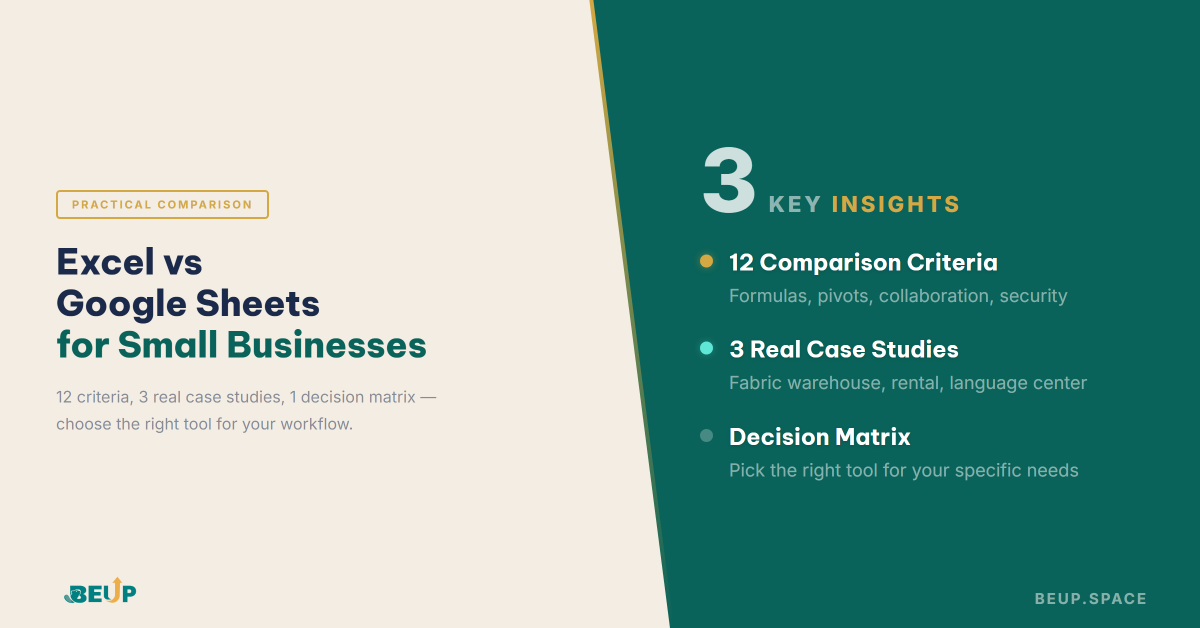
This article delves into 12 comparison criteria, 3 real case studies from Vietnamese businesses, and a decision matrix to help you choose the right tool for each specific situation.
Article content
Microsoft Excel is a desktop spreadsheet software, launched in 1985, running on Windows and macOS. The current version (Microsoft 365) supports up to 1,048,576 rows × 16,384 columns, features VBA macros, Power Query, Power Pivot, and a vast add-in ecosystem. Excel requires a paid subscription — approximately 1,500,000–2,300,000 VNĐ/year for a personal Microsoft 365 plan.
Google Sheets is a free web-based spreadsheet application, launched in 2006, running entirely in a browser. It has a limit of 10 million data cells (approximately 200,000 rows if using 50 columns), features Apps Script for automation, and deep integration with Google Workspace. Real-time collaboration is its biggest strength.
| Criteria | Excel Desktop | Google Sheets | Conclusion |
|---|---|---|---|
| 1. Cost | ~1.5–2.3 million VND/year (M365). Perpetual license ~3–4 million VND. | Free. Workspace Business from ~170k/month | GSheets wins if budget is limited |
| 2. Data Capacity | 1,048,576 rows. In practice, runs smoothly up to 500k+ rows | 10 million cells. In practice, noticeably slows down after 50,000 rows | Excel is the clear winner |
| 3. Processing Speed | Local computation on CPU. Instant response with files <50MB | Depends on network + Google server. Lags with many formulas | Excel wins — especially when files are complex |
| 4. Real-time Collaboration | Available (M365/OneDrive) — but occasionally conflicts when saving | Smooth, many users simultaneously, see each other's cursors instantly | GSheets is the clear winner |
| 5. Offline Work | Offline by default. No internet needed | Must be enabled beforehand in Chrome. Doesn't sync until online | Excel wins — more reliable |
| 6. Formulas & functions | 500+ functions. XLOOKUP, LAMBDA, Dynamic Arrays, LET, MAP, REDUCE | ~400 functions. Has LAMBDA, XLOOKUP but lacks Dynamic Spill | Excel has a slight edge — GSheets meets 90% of needs |
| 7. Macro / Automation | VBA — powerful, flexible, runs locally. Power Automate | Apps Script (JavaScript) — easy to learn, runs on the cloud, time-based triggers | It's a tie — each has its own strengths |
| 8. Charts & visualization | 80+ chart types, pixel-level customization, sparklines | 30+ types, sufficient for most needs, easy to embed in web/Slides | Excel is more visually appealing, GSheets is more convenient |
| 9. External Integrations | Power Query (pulls data from SQL, web, API). Office Store Add-ins | Google Forms, Calendar, Gmail, Looker Studio, Zapier, Make | GSheets wins — more open ecosystem |
| 10. Pivot Table | Pivot Table + Pivot Chart + Slicer + Timeline — extremely powerful | Basic Pivot Table. Lacks Slicer, Timeline | Excel is the clear winner |
| 11. Security | Local files, workbook encryption, password-protected sheets. You have 100% control | Data on Google servers. Link and domain-based permissions | Excel for sensitive data, GSheets if sharing is needed |
| 12. Version History | AutoRecover + Manual save. No detailed version history | Automatic version history, see who edited what, restore at any time | GSheets wins — better change management |
Quick Summary: Excel wins 5 criteria (data, speed, offline, formulas, pivot). Google Sheets wins 4 criteria (collaboration, integration, version history, cost). 3 criteria are a tie or depend on the context.
Pivot Table in Excel is more than just drag-and-drop — it supports Slicer (visual filters), Timeline (time-based filters), calculated fields, and automatic data grouping. Power Pivot also allows linking multiple data tables (data model) without VLOOKUP — like a miniature database.
Google Sheets has Pivot Table but lacks Slicer, Timeline, and a data model. For anyone needing to analyze revenue by month, by customer, and by product simultaneously — Excel is the only reasonable choice.
VBA allows you to write programs within Excel: automatically generating reports, formatting data, sending emails, and even connecting to APIs. A single macro can turn 2 hours of data entry into 10 seconds of automated execution.
In reality: many inventory, financial, and HR management systems in Vietnam run entirely on VBA macros — remaining stable for years without needing separate software.
Excel Desktop runs on your computer's RAM and CPU. A file with 200,000 rows, 30 columns, and hundreds of formulas — still responds in seconds. Google Sheets with the same data would lag to the point of being unusable.
If you manage a large warehouse, months of sales data, or need to run construction cost estimates with thousands of items — Excel is unrivaled.
In Vietnam, losing internet connection is not uncommon — especially at construction sites, warehouses, or suburban areas. Excel runs 100% offline. You open the file, enter data, save — no need to think about Wi-Fi.
Financial data, contracts, employee salaries — many business owners prefer not to upload to the cloud. Excel files reside on your computer or hard drive, can be password-encrypted, and no one can access them unless you share. For small businesses without a cloud security policy, this is a real advantage.
This is the number one reason people choose Google Sheets. 5 people can open and edit simultaneously, seeing each other's cursors instantly. No need to send files via Zalo, no “file is open by another user” errors, no overwriting.
For operations teams needing daily checklists, timesheets, or project progress tracking — Google Sheets is more effective than any complex project management software.
Create survey forms, order forms, or registration forms — data automatically flows into Google Sheets. No coding, no server needed. A bakery owner uses Google Forms to receive online orders; the data flows directly into a sheet, from which they calculate revenue and schedule deliveries.
Excel doesn't have a comparable feature that's as simple.
Google Sheets saves every change, minute by minute, with the editor's name. Who accidentally deleted something? Restore a previous version in 3 clicks. Excel Desktop doesn't have automatic version history — if you overwrite, old data is permanently lost (unless you manually back it up).
For teams with multiple editors, this is a lifesaver feature.
Google Sheets connects with Calendar (syncs calendars), Gmail (sends automated emails), Looker Studio (visual dashboards), Zapier/Make (connects 5,000+ applications). An order tracking sheet can automatically send a confirmation email when its status changes to “delivered.”
Excel has Power Automate, but it's more complex and requires Microsoft 365 Business.
Apps Script allows you to write JavaScript code that runs in the cloud. Specifically: you can set time-based triggers — for example, automatically sending an inventory report via email every morning at 8 AM, or compiling revenue totals every weekend. No computer needs to be on, no background software needs to run.
Excel's VBA macros are more powerful in terms of logic, but the file must be open for them to run.
Problem: Manages rental contracts, calculates monthly utility bills, tracks outstanding debts. Sensitive data (ID cards, contracts). Managed by one person, no collaboration needed.
Decision: Excel — because formulas are needed to link multiple sheets (rooms → contracts → utilities → outstanding debts), sensitive data shouldn't be put on the cloud, and there's only 1 user.
Result: Using BEUP's Excel lodging management system — from 3 hours of monthly billing down to 30 minutes.
Problem: 4 people receive orders from multiple channels (Shopee, Facebook, Zalo), and need to update order statuses in real-time. Previously, they sent Excel files via Zalo, often overwriting each other's work.
Decision: Google Sheets — because 4 people need to edit simultaneously, the data is not overly sensitive, and it needs to be viewed from a phone.
Result: No more missed or overwritten orders. The team updates it themselves, and the shop owner just needs to open the sheet to know the current situation.
Problem: Detailed estimation is needed (thousands of items, complex formulas), but payment progress also needs to be shared with the homeowner and construction team.
Decision: Excel as the estimation engine (using BEUP construction estimation system), Google Sheets as the shared progress sheet. Each week, key figures are updated from Excel to Google Sheets.
Result: The homeowner sees real-time payment progress. The construction team knows which items have been approved. Accounting still maintains the main Excel file with all complex formulas.
Answer these 4 questions to determine what you should use:
| Question | If YES → Excel | If NO → Google Sheets |
|---|---|---|
| Data over 10,000 rows? | Excel — speed and Pivot Tables | GSheets is sufficient |
| Need multiple people to edit simultaneously? | — | GSheets — real-time collaboration |
| Sensitive data (financial, contracts)? | Excel — local file, you control | GSheets if you trust Google |
| Need VBA macros or advanced Pivots? | Excel — no alternative | GSheets + Apps Script is sufficient for the remaining 90% |
Simple rules: If you answer “YES” to at least 2 questions — choose Excel. If you answer “NO” to all 4 — Google Sheets is sufficient. If mixed answers — read the next section.
Most small businesses in Vietnam don't need to choose one — but should using both in different roles.
| Role | Tool | Who uses it | Example |
|---|---|---|---|
| Engine (primary processing, calculation, storage) | Excel | 1–2 key personnel | Inventory, budgeting, and cash flow files |
| Dashboard (sharing, updating, collaborating) | Google Sheets | Entire team + stakeholders | Progress trackers, operational checklists, KPIs |
| Data collection (forms, registrations) | Google Forms → Sheets | Customers, employees | Orders, surveys, time tracking |
How to sync: Manual weekly updates (copying key data from Excel to Google Sheets), or use Power Automate/Zapier for automation if data changes frequently.
Neither is absolutely 'better'. Excel is stronger in calculations, large data, and macros. Google Sheets is stronger in collaboration, integration, and being free. The choice depends on your specific needs — see the 12-criteria comparison table above.
The technical limit is 10 million cells. But in practice, Google Sheets noticeably slows down when exceeding 50,000 rows — especially if there are many formulas. If your data exceeds 10,000 rows and requires complex calculations, you should consider switching to Excel.
Excel Online (web version) is free but lacks many important features: no VBA, limited Pivot Tables, no Power Query. Full Excel Desktop requires Microsoft 365 (~1.5–2.3 million VND/year) or a perpetual license purchase (~3–4 million VND). Additionally, some SMEs still use pre-installed Excel versions on their machines.
Yes. This is the most common strategy we advise small businesses on: Excel as the primary calculation system (engine), Google Sheets as the sharing and collaboration dashboard. See the “Hybrid Strategy” section above for implementation details.
Google Sheets is secured by Google's system (encryption, 2-step verification). However, data resides on Google's servers — you don't have 100% physical control. If financial data is particularly sensitive (contracts, salaries, national IDs), many small business owners still prefer Excel Desktop to keep files on their personal computers.
Excel Online is free, runs in a browser, and supports real-time collaboration — but lacks VBA macros, Power Query, Power Pivot, and many advanced charting features. It's closer to Google Sheets than Excel Desktop. If you're using Excel Online and find it sufficient — then Google Sheets will also be sufficient (and possibly more convenient).
Three clearest signs: (1) the file starts lagging — slow to load, choppy scrolling — typically when exceeding 30,000–50,000 rows; (2) you need advanced Pivot Tables with Slicers or a data model; (3) you need macros to automate complex processes (generating reports, formatting data, sending bulk emails).
There are several ways: (1) manually — copy-paste key figures weekly; (2) upload an Excel file to Google Drive, which will automatically convert it to Sheets (but macros will be lost); (3) use Zapier or Power Automate for automatic syncing; (4) use Apps Script in Google Sheets to pull data from Excel files on OneDrive/SharePoint.
Whether You Choose Excel or Google Sheets — The Hardest Part Isn't Picking the Tool. It's... designing the internal system: sheet structure, linking formulas, what the dashboard displays, and how data flows.
One wrong formula, and the dashboard gives incorrect numbers. Missing one link, and the data becomes fragmented. That's why many skilled Excel users still spend weeks building a complete system — only to discover logical errors after a few months of use.
That's also why we build our Excel management systems at BEUP — each template is a complete solution, thoroughly tested with businesses:
Each system saves 2–4 weeks of design. More importantly — it avoids logic errors, incorrect formulas, and missing links that non-specialists often encounter.
View all Excel templates at BEUP →
Get insights on management, operations & digital assets delivered to your inbox.

Copyright © 2026 BEUP Learning Solutions
MST: 3301755602
Book a free consultation to explore how BEUP can transform your workflow.
Book a Consultation →Digital Asset Ecosystem & Operating System for individuals & teams.